



How to Get IRS Transcripts for Clients as a Tax Pro
You need a client's wage records or a prior-year return fast, and the client can't find their copy anywhere. That's the moment every tax preparer knows: back tax filings, IRS notices, and amended returns all hinge on data you don't have yet. Pulling irs transcripts tax professionals rely on solves this, but only if you know how to pull tax transcripts online and the right steps.
The fastest, most reliable path is the IRS Transcript Delivery System (TDS), the online portal built specifically for practitioners with valid authorization on file. Once you're set up through your e-Services account, you can request wage and income transcripts, account transcripts, and return transcripts for clients in minutes instead of waiting weeks for mailed copies. This matters most when you're racing a filing deadline or responding to an IRS notice.
This guide walks through exactly how to get access, what authorization forms you need (think Form 2848 or 8821), and how to request transcripts correctly the first time. We prepare returns for self-employed filers, small businesses, and back-tax cases every day at TaxesToday, and transcript access is often the difference between a clean filing and a frustrating delay.
What you need before requesting client transcripts
Before you can pull a single transcript, you need three things lined up: a valid IRS e-Services account, an active authorization from the client, and the exact identifying details the IRS matches against its records. Skip any one of these and the Transcript Delivery System will reject your request or lock you out entirely. Most delays tax pros hit with irs transcripts for tax professionals trace back to missing paperwork, not a broken system.
Your professional credentials and IRS e-Services account
First, you need a Centralized Authorization File (CAF) number, which the IRS assigns the first time you file a valid Form 2848 or 8821. If you've never filed one before, you'll get a CAF number automatically after your first submission, and it stays with you for life. Second, register for an e-Services account on IRS.gov, which requires identity verification through ID.me. Preparers with an EFIN from the IRS e-file program typically move through this faster since much of their business information is already on file. Have these ready before you start the registration process:
- Your Social Security number or ITIN
- A valid EFIN if you're an e-file provider
- A CAF number, or plan to obtain one with your first authorization filing
- A smartphone or webcam for ID.me identity verification
- Your business address and phone number matching IRS records
Client information you'll need on hand
Next, gather the client details the system checks against IRS records before releasing anything. You need the client's full legal name exactly as filed, Social Security number or EIN, current mailing address on file with the IRS (not necessarily their current address if they've moved), and the tax years in question. A mismatch on address alone causes more rejected requests than any other single error. If a married couple filed jointly, you need both names and both SSNs, since the IRS won't process a joint-return transcript request with only one spouse's information.
A transcript request is only as good as the client details behind it, so verify every name, number, and address before you submit anything.
Knowing which transcript type you actually need
Finally, decide which transcript type fits your situation before you log in, since the TDS menu forces you to pick one and requesting the wrong type wastes a login cycle. An account transcript shows payments, penalties, and IRS adjustments, which is what you want for back-tax cases or responding to an IRS notice. A return transcript mirrors the original filed return, useful for loan applications or amended return prep. A wage and income transcript pulls W-2, 1099, and 1098 data reported to the IRS, which is the one that saves you when a client lost their paperwork entirely.
| Transcript Type | Best Used For | Data Included |
|---|---|---|
| Account Transcript | IRS notices, back taxes, payment history | Balances, penalties, adjustments |
| Return Transcript | Amended returns, loan applications | Line items from original filing |
| Wage and Income Transcript | Missing W-2s or 1099s | Employer and payer-reported income |
| Record of Account | Full picture combining return and account data | Both return details and account activity |
Once you've confirmed your credentials, gathered client data, and picked the right transcript type, you're ready to handle the authorization paperwork itself, which is where most of the real work happens.
Step 1. Get authorized with Form 2848 or 8821
Before the Transcript Delivery System will hand over a single document, the IRS needs proof that your client actually wants you looking at their tax file. That proof comes from one of two forms: Form 2848 (Power of Attorney) or Form 8821 (Tax Information Authorization). Picking the wrong one wastes days, so know the difference before you send anything to a client for signature.
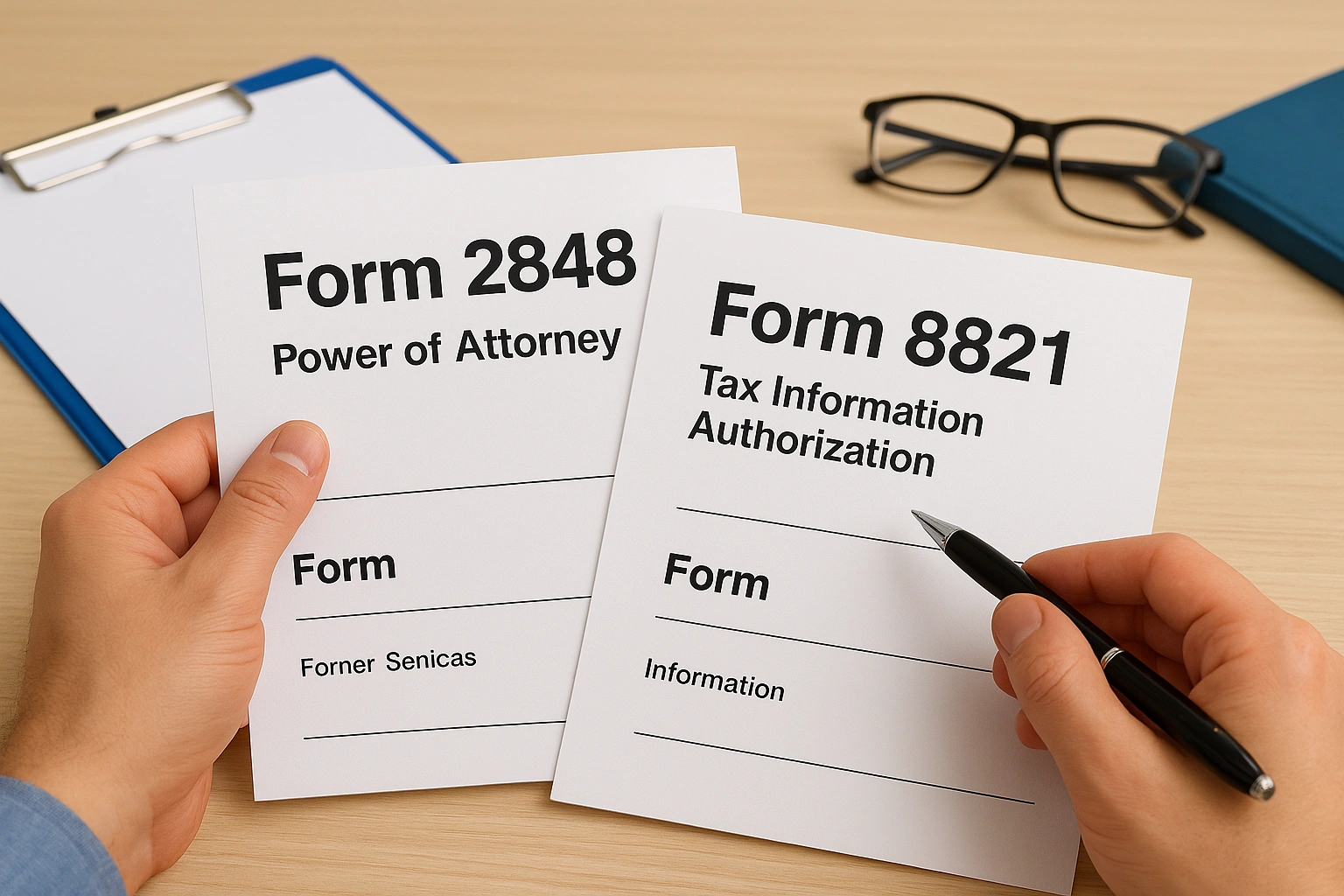
Form 2848 grants you power of attorney, meaning you can represent the client before the IRS, respond to notices on their behalf, and argue their case. Form 8821 only lets you view and receive information, nothing more. If you're just pulling a transcript to prep a return or check a balance, 8821 is faster to process and asks the client for less. If you're also fighting a notice or negotiating a payment plan, you need 2848.
| Form | Grants Representation | Grants Transcript Access | Typical Use |
|---|---|---|---|
| Form 2848 | Yes | Yes | Notice responses, audits, IRS negotiations |
| Form 8821 | No | Yes | Return prep, missing wage data, quick lookups |
Match the form to the job. Requesting power of attorney for a simple transcript pull just slows you down.
Filling out and submitting the form correctly
Accuracy matters more than speed here. Fill in the client's name, SSN or EIN, and address exactly as it appears on their most recent filed return, then list the specific tax years or periods you need access to. Leaving the years too broad or too narrow is a common mistake that forces a resubmission.
Submit through the IRS Submit Forms 2848 and 8821 Online tool if you and your client can both complete electronic signatures. This route usually posts to the CAF system within days. Mailed or faxed forms can take several weeks to process, which defeats the purpose if you're racing a deadline.
What happens after you submit
Once the IRS processes your authorization, it links your CAF number to that client's account, and this connection is what the Transcript Delivery System checks every time you log in. Give it 24 to 48 hours after electronic submission before attempting a transcript pull, since the CAF database update isn't always instant.
Step 2. Verify your identity and set up your IRS account
Once your authorization paperwork is moving through the CAF system, turn your attention to your own e-Services account, since the Transcript Delivery System won't let you in without it. This account is separate from your regular IRS.gov login through ID.me and requires a step the IRS takes seriously: identity proofing through ID.me. Skipping ahead to registration without your documents ready just means starting over.
Setting up ID.me verification
Go to the IRS e-Services page and choose to create or sign in to your account, which routes you through ID.me if you haven't verified before. You'll need a government-issued photo ID, your Social Security number, and either a smartphone with a camera or a webcam for a live selfie match. The process typically takes fifteen to twenty minutes if your documents are clear and legible. Have these ready before you start:
- A driver's license, state ID, or passport
- Your Social Security number
- A phone or webcam for the selfie verification step
- An email address you check regularly for confirmation codes
Rushing identity verification with a blurry photo or expired ID is the single fastest way to add a full day to your setup.
Registering as a tax professional
After ID.me clears you, the system prompts you to register your specific role, and you'll select the tax professional path rather than the individual taxpayer option. Here the IRS asks for your EFIN, your CAF number if you already have one, and your firm's name and address exactly as it appears on your IRS records. Mismatches here, even something as small as a suite number left off, can trigger a manual review that adds days to the process.
Confirming your account is active
Before moving on, log back in a day later to confirm the account shows as active rather than pending. A pending status usually means the IRS is cross-checking your EFIN or CAF number against its internal database, and this can take anywhere from a few hours to a couple of business days. Patience here saves you from repeatedly hitting a locked login screen when you're ready to pull your first irs transcript online tax practitioner request.
Step 3. Log in to the Transcript Delivery System
With your e-Services account active and your authorization posted to the CAF system, you're ready to open the Transcript Delivery System itself. Sign in to your e-Services dashboard and look for the TDS tile among your available tools; it won't appear until your tax professional registration and CAF number have both cleared IRS verification. Clicking through takes you to a separate interface from the rest of e-Services, built specifically for pulling client records rather than filing forms.
Navigating the TDS dashboard
Once inside, the system asks you to confirm which authorization type you're acting under, either your Form 2848 or Form 8821 on file, before it lets you search for a client. Enter the client's SSN or EIN, their name exactly as it appears on IRS records, and the tax period you need. The TDS interface cross-references this against the CAF database in real time, so any mismatch from Step 1 shows up here as a rejection rather than later in the process.
If your client information doesn't match the CAF record exactly, the system won't tell you why. It just won't return anything.
Fixing common login and access errors
A few errors show up often enough that you should recognize them on sight rather than guessing your way through a support call:
| Error | Likely Cause | Fix |
|---|---|---|
| "No authorization on file" | CAF update hasn't posted yet | Wait 24-48 hours after Form 2848/8821 submission |
| "Account pending" | EFIN or CAF cross-check incomplete | Check back in a few hours or call e-Services support |
| "Client information mismatch" | Name, SSN, or address doesn't match IRS records | Re-verify details against the client's most recent filed return |
| "Session timed out" | TDS logs you out after periods of inactivity | Re-enter credentials and start the request again |
Most of these resolve on their own with time, not troubleshooting. If an error persists past 48 hours after your authorization was submitted electronically, that's your signal to call the Practitioner Priority Service line rather than keep resubmitting the same request. Once the system accepts your client's information without an error, you're one click away from the transcript itself.
Step 4. Request, download, and read the transcript
Once the system accepts your client's information, the TDS interface presents a list of available transcript types for the tax years you requested. Select the one you identified back in Step 1, choose the tax period, and click through to generate the document. Most requests process instantly, delivering a PDF you can view, save, or print within seconds rather than the ten-day wait you'd face mailing Form 4506-T instead.
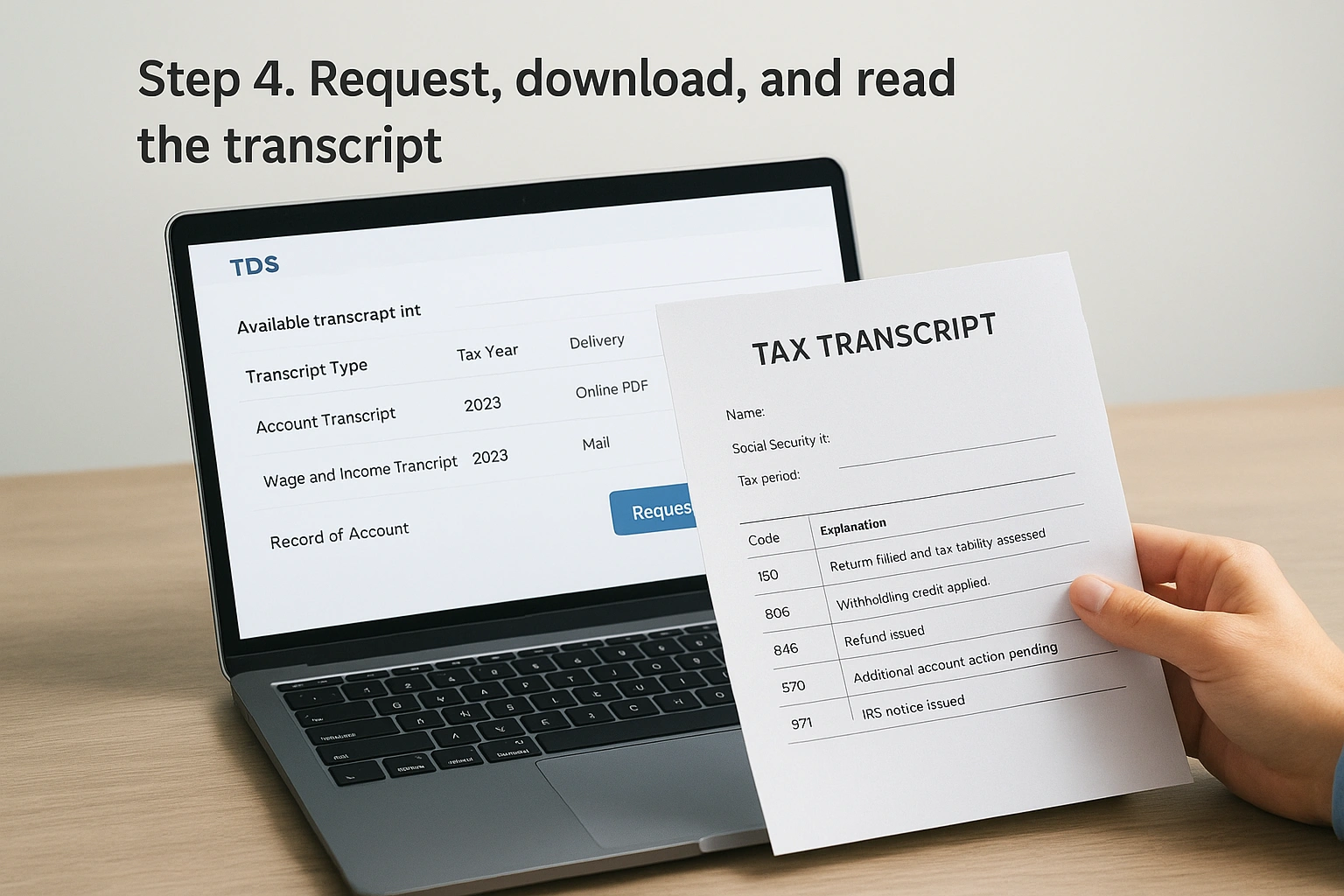
The whole point of TDS is speed: a transcript that used to take two weeks now takes two minutes.
Choosing between instant PDF and mail delivery
You'll usually see two delivery options: an immediate online PDF or a mailed copy sent to the address on file. Pick the online PDF whenever you're working under deadline pressure, since the mailed version defeats the purpose of using TDS in the first place. Save the PDF directly into your client's file using a naming convention that includes the tax year and transcript type, something like "Smith_2023_WageIncome.pdf", so you're not hunting through a folder of identical filenames later.
Reading the codes without guessing
An account transcript in particular is dense with transaction codes that mean nothing to most clients and confuse plenty of preparers too. Learning the handful that show up constantly saves you from misreading a client's situation.
| Code | Meaning |
|---|---|
| 150 | Return filed and tax liability assessed |
| 806 | Withholding credit applied |
| 846 | Refund issued |
| 570 | Additional account action pending (often a hold) |
| 971 | IRS notice issued |
The IRS publishes a full list of these on its Document 11734 transaction code reference, worth bookmarking if you handle back-tax cases regularly.
Confirming the numbers before you file
Before you build a return or respond to a notice around what the transcript shows, review the figures before filing by cross-checking the wage and income data against any documents the client already gave you. Discrepancies between employer-reported numbers and a client's memory are common, and the transcript wins every time since it reflects what's already on file with the IRS. Getting this step right up front is exactly why our team at TaxesToday builds transcript review into every engagement to catch up on unfiled years before a single form gets drafted.
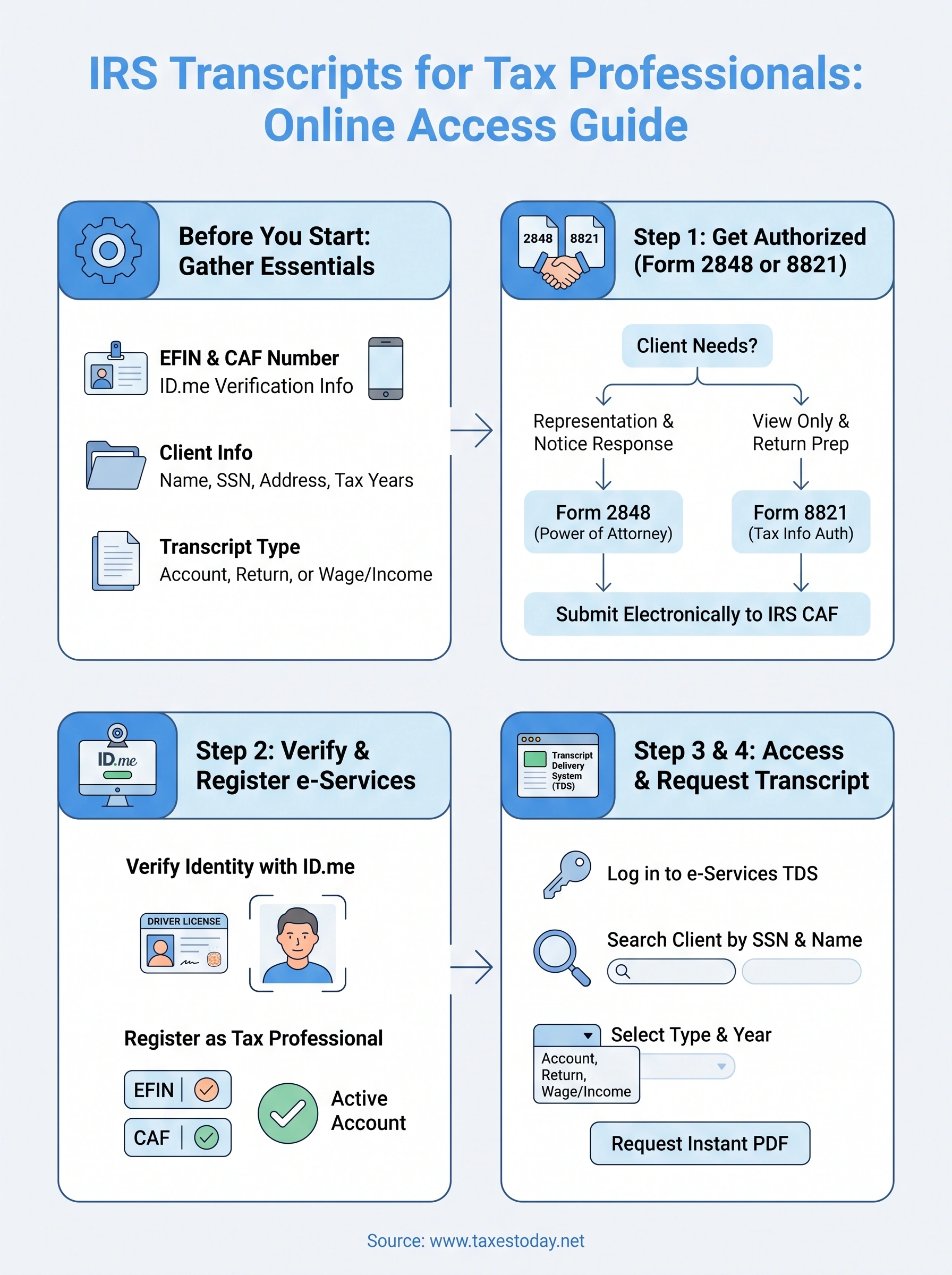
Putting it into practice
Getting comfortable with irs transcripts tax professionals rely on isn't complicated once you've done it a few times. The pieces are simple: valid authorization on file, an active e-Services account, and knowing which transcript answers your client's actual question. Every step in this guide exists to prevent the same problem, a rejected request that costs you a day you didn't have.
Handle the paperwork before you need it, not during a deadline crunch. Get your Form 2848 or 8821 filed early, keep your e-Services credentials active, and build transcript review into your standard intake process rather than treating it as a last resort. Clients with back taxes, missing wage records, or IRS notices show up constantly, and you'll want this workflow second nature by then.
If you'd rather hand a complicated filing to a licensed professional who already runs this process daily, have TaxesToday prepare and e-file the return from $99 and skip the guesswork entirely.