


TaxAct Prior Year Return: How to Access, File, and Print
Looking for your taxact prior year return and hitting a wall? You are not alone. TaxAct only keeps a limited window of returns easily accessible in your account, and once you switch computers, let a subscription lapse, or just forget your login from three tax seasons ago, pulling up an old return turns into a scavenger hunt through emails and download folders.
This guide walks you through exactly how to access, file, and print a prior year return in TaxAct, step by step, whether you filed last year or five years ago. You will learn where TaxAct stores older returns, what to do when the software says a year is no longer supported, and how to get a clean PDF copy for your mortgage lender, your accountant, or the IRS.
We will also cover what to do if TaxAct cannot retrieve your file at all, because that happens more often than people expect. If you get stuck partway through, or you would rather have a licensed tax preparer handle a back-year filing or an amended return correctly the first time, TaxesToday.net's CTEC-certified preparers can pick up right where the software leaves off, virtually or in person.
What to know before accessing a prior year return in TaxAct
Before you go digging, understand one thing: TaxAct treats each tax year as a separate product, not a single account with a running history. That matters because your login might work fine, but the return itself could live in a different place depending on whether you used the online version or the desktop software that year. Knowing this upfront saves you from clicking around in circles.
How far back TaxAct actually goes
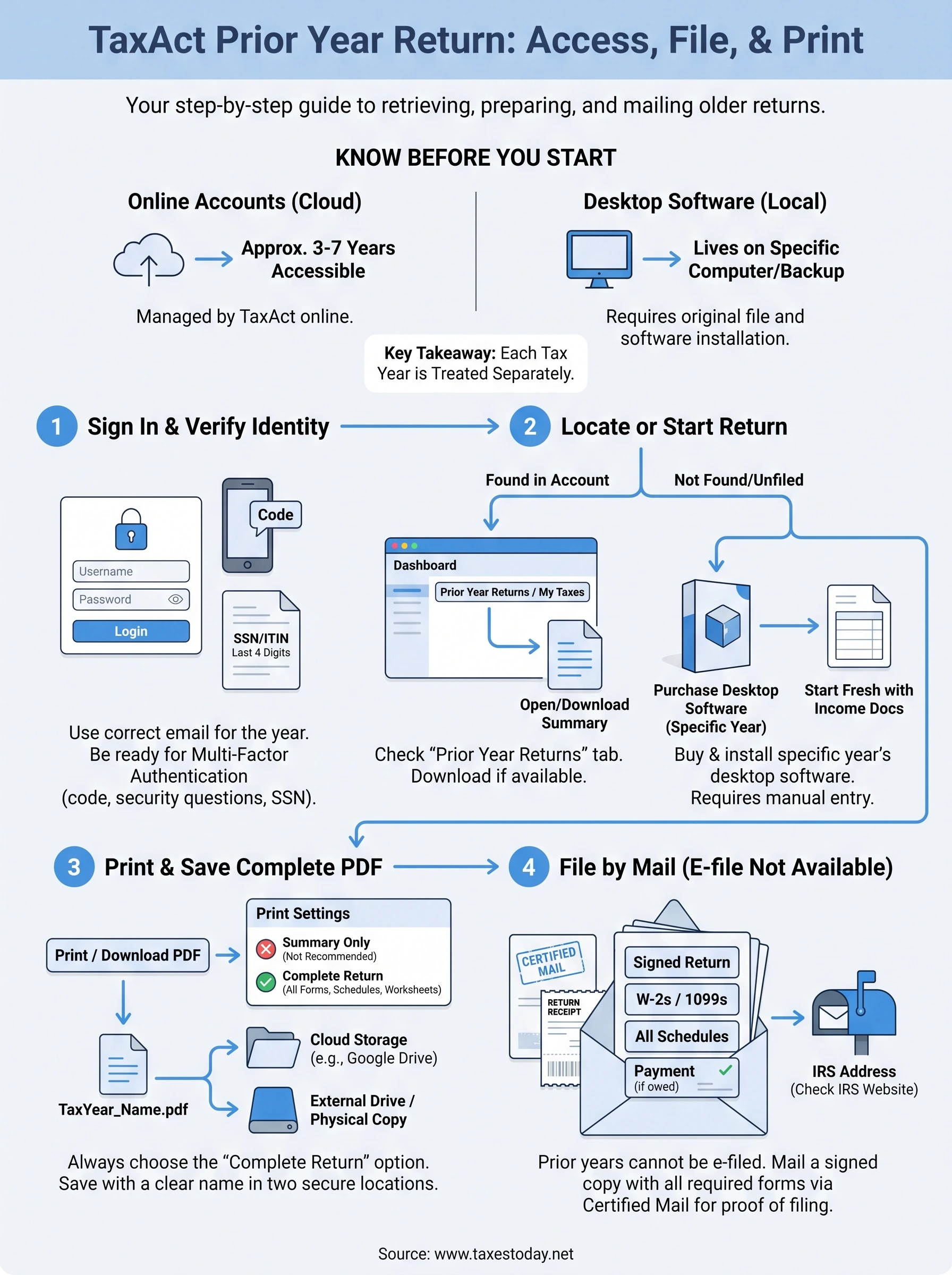
TaxAct's online platform typically keeps the last three to seven tax years accessible for retrieval, depending on the plan you used and whether you're a returning customer. Anything older than that usually will not show up in your account dashboard at all, even if you paid for the service and filed successfully. If your return is truly old, you're better off requesting a transcript directly from the IRS rather than fighting with the software.
If TaxAct can't retrieve your return, the IRS almost always still has a record of it.
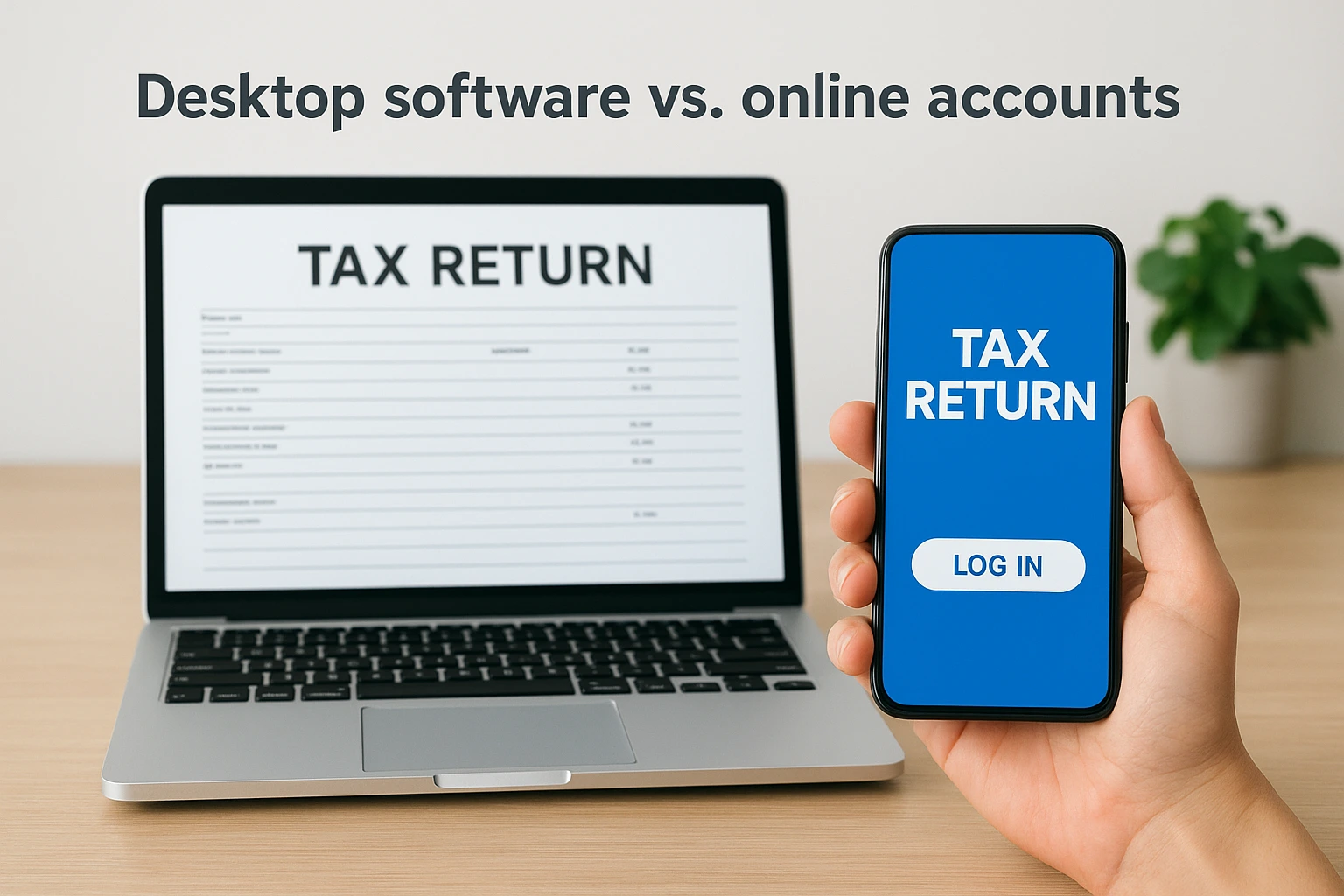
Desktop software vs. online accounts
If you used the CD or downloaded desktop version, your return lives on that specific computer, not in the cloud. Reinstalling TaxAct on a new laptop without your old backup file means the return is effectively gone from your end, though a transcript request still works as a backup plan.
| Filing method | Where the return lives | How far back it's accessible |
|---|---|---|
| TaxAct Online | Your TaxAct account, cloud-based | Roughly 3-7 years |
| TaxAct Desktop | Local computer or backup file | As long as you keep the file |
| IRS Transcript | IRS records | Up to 10 years (7 for full copies) |
What you'll need before you log in
Gather these three things first, so you're not stopped mid-step:
- The email address and password tied to the specific tax year you're chasing (many people had a different email back then)
- Your Social Security number or ITIN used on that return
- A method to verify identity, since TaxAct may text or email a one-time code
Having these ready turns a frustrating hunt into a five-minute task.
Step 1. Sign in to your TaxAct account
Start at the official TaxAct sign-in page, not a bookmarked link from years ago that might route you to an outdated portal. Type the URL directly into your browser rather than clicking a link from an old email, since that's a common phishing trick around tax season.
Finding the right login credentials
Because TaxAct treats each tax year separately, you might have created a new account without realizing it, especially if you switched from desktop to online at some point. Try your most recent email first, then work backward through any old addresses you've used. If TaxAct doesn't recognize your email at all, use the "Forgot Username" tool before assuming your account is gone.
A forgotten password takes two minutes to fix. A forgotten account takes a lot longer, so check every old email address before giving up.
Getting through identity verification
TaxAct locks down access to older returns with extra security checks, which makes sense given how much personal data sits inside a tax return. Expect one or more of these:
- A one-time code sent to your phone or email
- Answers to security questions you set up originally
- Confirmation of the last four digits of your SSN
If verification fails repeatedly, call TaxAct support directly rather than creating a duplicate account, since that only splits your filing history further and makes the next tax year harder to track down.
Step 2. Open or start your prior year return
Once you're logged in, TaxAct drops you on a dashboard listing every tax year tied to that account. Look for a "Prior Year Returns" or "My Taxes" tab, since the current year's return usually sits front and center and older filings get tucked into a secondary menu. Click the tax year you need, and TaxAct should open a read-only summary or give you the option to download the full return.
When the return isn't in your account
Sometimes the dashboard shows the year but not the actual file, especially if you started a return but never finished filing it. In that case, you'll need to purchase and download that specific year's desktop software, since TaxAct requires separate program versions for each prior tax year rather than one universal online tool. This trips up a lot of people who assume the current year's software can open older files.
TaxAct doesn't file back years online. Each prior year needs its own desktop program, even if you already paid once.
Starting fresh if you never filed that year
If you never actually completed a return for that year, you're not accessing anything, you're starting one from scratch:
- Buy the correct year's TaxAct desktop edition (not the current year)
- Install it and enter your income documents for that specific year
- Use W-2s, 1099s, and any records you've kept, since the IRS can supply wage transcripts if you're missing paperwork
This path takes longer, so budget an evening rather than ten minutes.
Step 3. Print your return or save it as a PDF
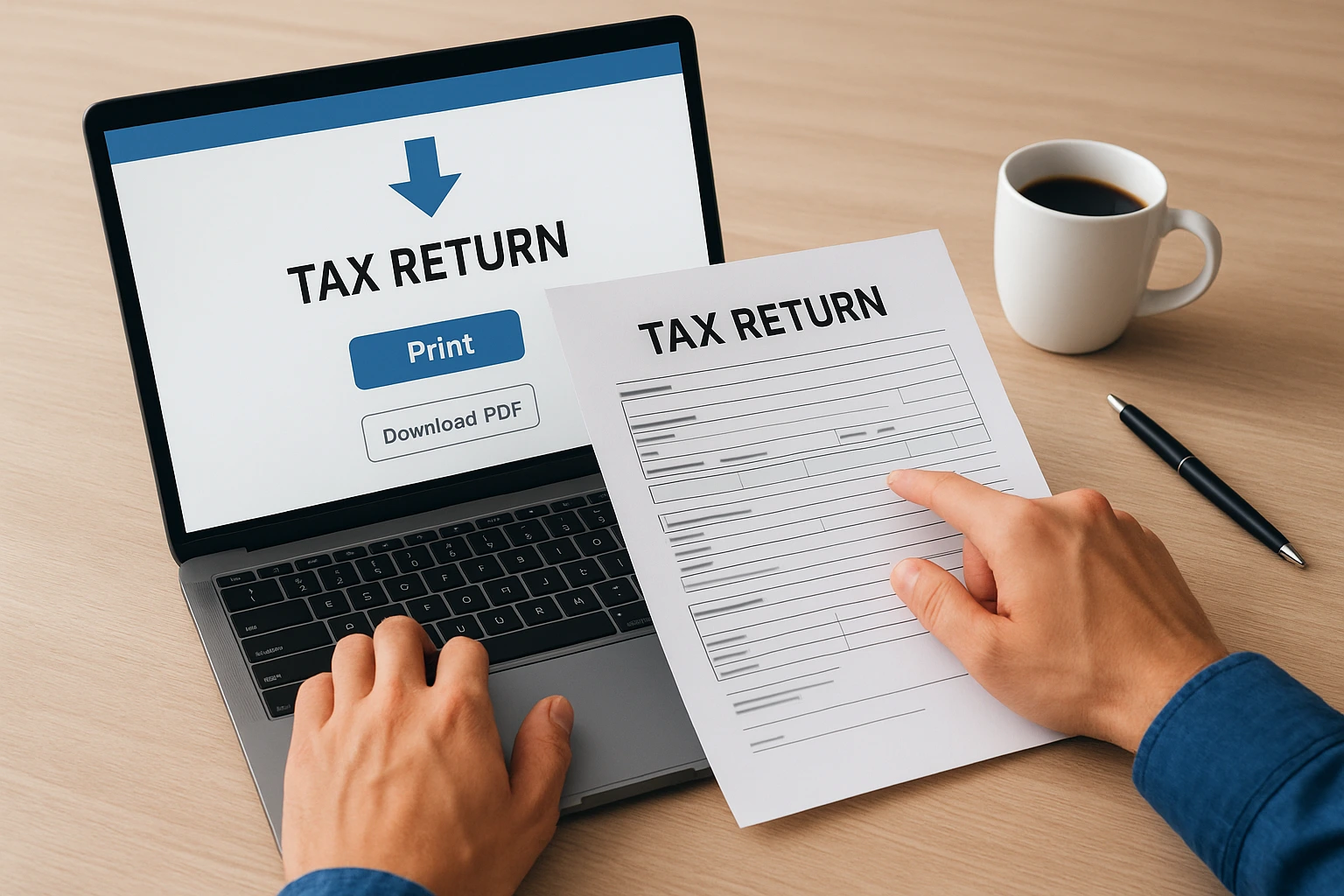
Once you've located your return, resist the urge to just screenshot the summary page. A lender, an accountant, or the IRS needs the complete return, including every schedule and worksheet, not just the one-page overview TaxAct shows by default. Look for a "Print Return" or "Download PDF" button, usually sitting near the return summary or inside the account's document center.
Getting the full PDF, not a partial one
Before you save anything, check the print settings. TaxAct sometimes defaults to a "filing copy" that excludes worksheets you might actually need for a mortgage application or an audit response. Select the option for the complete return with all forms if it's offered, since that version holds up better if anyone questions a number later.
A tax return missing its schedules isn't proof of anything. Always save the full version, not the summary.
Saving it somewhere you'll actually find it again
Once downloaded, rename the file with the tax year and your name, then store it in at least two places:
- A cloud folder (Google Drive, Dropbox, or similar) labeled by tax year
- An external drive or a printed copy in a physical file
This two-copy habit solves the exact problem that likely brought you to this guide in the first place: a return you can't find years later because it lived in one forgotten folder on one dead laptop.
Step 4. File your prior year return with the IRS
Getting the return printed doesn't mean you're done. Prior year returns almost never qualify for e-file, so you'll need to mail a paper copy to the IRS, and the address depends on your state and whether you're including a payment. Skipping this step is the most common reason people think they've "filed" a back year when the IRS has no record of it at all.
Why you can't e-file most prior years
The IRS shuts down its e-file system for older tax years every fall, usually around November, to prepare for the upcoming filing season. TaxAct follows that same schedule, which means any return older than the current or immediately prior year has to go in through the mail. Check the IRS filing addresses page for the correct mailing address, since sending it to the wrong service center adds weeks to processing.
Mailing a paper return isn't old-fashioned, it's the only legal path for most back years.
What to include in the envelope
Before you seal anything, confirm your packet has everything the IRS expects:
- Signed and dated original return, not a photocopy
- All W-2s and 1099s showing withholding
- Any required schedules TaxAct generated
- A check or money order if you owe, written to "United States Treasury"
Use certified mail with a return receipt. That's your only proof of the filing date if the IRS ever disputes when your return arrived, and it matters more than most filers realize until they need it.
Getting your back taxes squared away
Retrieving a taxact prior year return comes down to knowing where the software actually stores your files, whether that's a cloud account or a specific desktop program tied to one computer. Once you have the return in hand, printing the complete version and mailing it correctly matters just as much as finding it in the first place, since the IRS won't count a return as filed until it physically arrives.
Not every back-year situation fits neatly into a software workflow, though. If you're missing income documents, dealing with multiple unfiled years, or you just want someone to double-check the numbers before they go in an envelope, that's where a second set of trained eyes helps. TaxesToday.net's CTEC-certified preparers handle back taxes and amended returns every filing season, and they can take this off your plate entirely. Reach out through TaxesToday.net's tax preparation services and get your prior year return filed correctly the first time.